Wednesday, October 10, 2012

Schedule Workflow in CRM

  Sometime client wants to schedule a process run in a specific interval means like we have some promotional mails and in a specific interval these mail should be sent to the customers and there will some other process (workflows) which should be triggered in a specific interval defined by the user. In CRM we don’t have a functionality to schedule the workflow to run in a specific interval but using some techniques we will be able to achieve this functionality below I have explained the way how I have achieved the functionality of scheduling workflows

I was searching for a solution in the net for scheduling workflow in crm. I have gone through different blogs and in that two I have found as useful here is that two blogs 

Scheduling recurring workflows in CRM    by  Gonzalo Ruiz 


And in my scenario the user should be able to define the interval time and also the user should be able to create their own workflows and they should be able to schedule that workflow created by them to be triggered in a specific interval. So for this what I have did is I just created a custom entity which the user can define that which workflow should be triggered and they can also specify the intervals in this. For that in my custom entity I have created a lookup filed to workflows so the user can select the workflow which they want to trigger and for defining the interval I have added an option set filed and a number field in the form. In this option I have given option like  “ Hour , Day , Week , Month “ and the numeric filed also which they can specify the interval count means “ The selected workflow should run in every 3 days  “ so this three can be defined in the interval count field.

We can create a Workflow (Process) same as specified the above blogs means like for achieving scheduling a workflow functionality  in CRM we can able to create a workflow with some custom workflow activity

Since we need to have this functionality (schedule workflow) for running different workflow so we will not able to use the system workflow functionality “trigger child workflow” instead of that we can write a custom workflow activity which will retrieve the workflow id from the entity record created and we can also write the code to trigger the same workflow in this custom workflow activity below I have given the code for triggering a workflow

ExecuteWorkflowRequest request = new ExecuteWorkflowRequest(); 
request.WorkflowId = ((EntityReference)entity["new_workflow"]).Id;
request.EntityId = new Guid("1DCDEE97-35BB-44BE-8353-58BC36592656");
ExecuteWorkflowResponse response = (ExecuteWorkflowResponse)service.Execute(request);


Note : - The workflow which you want to trigger in a specific interval can be created against to the same custom entity(which we used for defining the workflow to be triggered and the interval) only because in this code we need to specify the entity record id also for triggering the workflow  so if you create the workflow against this entity means in this custom workflow activity we will be able to retrieve the entity id and we can use this id for triggering the workflow  

In this custom workflow activity we will also write code to calculate and return the next execution date and time and we can have a field in the same custom entity which we can update the next execution date time.

So using the wait condition we will be able to wait till the next execution date time


It will be waiting till the next execution date time and it will be triggering the workflow defined for triggering in an interval also will be getting triggered  by the custom workflow activity defined in the workflow
So for the continuation we can make the workflow to be triggered in as child workflow and in the end we will be able to trigger the child workflow using existing functionality triggering child workflow 

Otherwise 

Anyway we will calculate the next execution date time and we will update this in this entity so in this field update also if you trigger the same workflow it will be executing like a loop …in each and every flow it will be updating the date time so the workflow gets triggered continually…


* We should be very careful when we schedule a workflow it may slow down your CRM system

Every time you create a recurring workflow, you should carefully consider what resource consumption implications it will have. Recurring operations tend to utilize a large amount of resources which can cause lagging to the CRM Asynchronous processing service.
* For a specific entity only we will be able to create this workflow  means like when you trigger the workflow in custom-workflow  activity also we need to specify a entity id so this u can retrieve from the current entity and u can make the workflow to run against the  the same entity !

Friday, September 28, 2012

How to Restrict Saving of a Record in CRM 2011

First make sure you have the 'Pass execution context as first parameter' checkbox ticked when attaching the onSave Event Handler


In the ValidateData method make sure you have a parameter defined to receive the Execution Object.

function ValidateData(ExecutionObj){
     //Place all your data validation here
     //In case data is not valid call the below method
     // The getEventArgs() method returns an object with methods to manage the Save event.
     // The preventDefault() method cancels the save operation
     ExecutionObj.getEventArgs().preventDefault();
}

Refer this link for more details ...

Tuesday, September 4, 2012

Debugging a Plugin in CRM 2011


  1. Build and register your Plugin as usual.
    Register Plugin
  2. Inside Plugin Registration Tool, you’ll find a button which says Install Profiler, Click it.

    Install Profiler
  3. Once it is done, you will find an entry for Plug-in Profiler beneath your assemblies.
  4. Now, go-to the step for which you want to debug your plugin and press the Profile button.
    Start Profiling
  5. Once done, you will see a tag (Profiled) adjacent to the step.
    Profiled
  6. Now go ahead and execute the plugin i.e. perform the steps in CRM that will trigger this plugin.
  7. If the code has any errors, then CRM will provide you a log file to download; go ahead and download the file. (see screenshot below)
    Error Log
  8. Now, inside Visual Studio, insert Breakpoints wherever you feel and use Attach to Process button and attach the code to Plugin Registration Tool exe.
    Note: Initially you will see that VS cannot find symbols so breakpoints will not be hit.
    Attach to Process
  9. Now, go back to Plugin Registration Tool and Select the Step which you profiled earlier hit Debug button.
    Debug
  10. A new Dialog-box will be presented to you, refer to the necessary files and hit Start Plug-in Execution button.
    Start Plug-in Execution
  11. Wait for a few seconds and you will start to see the following in Plug-in Traces window from Debug screen.
    Plug-in Trace
  12. Now, switch to Visual Studio and you will see that your first Breakpoint has been hit.
    Breakpoint

Wednesday, August 15, 2012

Parse CRM Date with JavaScript


A JavaScript function to parse a CRM Date that returns a JavaScript Date object. This method can be used in both 2011 and 4.0


  //parsing

  function parseDate(xmlDate)
   {
     if (!/^[0-9]{4}\-[0-9]{2}\-[0-9]{2}/.test(xmlDate)) {
      throw new RangeError("xmlDate must be in ISO-8601 format YYYY-MM-DD.");
     }
    return new Date(xmlDate.substring(0,4), xmlDate.substring(5,7)-1, xmlDate.substring(8,10));
   }

  // and using

 // In CRM 4.0
 
 if(retrievedOpp.attributes["estimatedclosedate"] != null && retrievedOpp.attributes["estimatedclosedate"] != undefined){
 crmForm.all.new_estimatedclosedate.DataValue = parseDate(retrievedOpp.attributes["estimatedclosedate"].value);}

  // In CRM 2011

if(retrievedOpp.attributes["estimatedclosedate"] != null && retrievedOpp.attributes["estimatedclosedate"] != undefined){
Xrm.Page.data.entity.attributes.get('estimatedclosedate').setValue(parseDate( Xrm.Page.data.entity.attributes.get('new_closedate').getValue()));}
  

Reference :- http://crmpro.blogspot.in/2009/11/javascript-function-to-parse-xml-iso.html

Wednesday, August 1, 2012

Point the Email router server after Installing CRM 2011 server


Normally when we install CRM 2011 the setup will be asking for the Email Router at that time we could have just skipped the step... 
Later if you want to point your email router server from your application server means what we can do??
There is an option specified while we install the CRM itself it is told that we can install the email router later and we can configure the same while installing crm itself they have mentioned the way over there


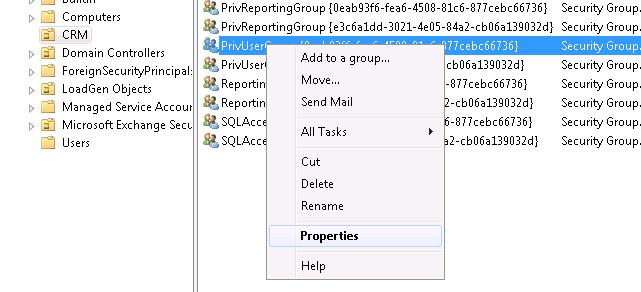
Open the Active directory 
 In you domain Navigate to CRM 
 
 Right click on the PrivUserGroup and click on properties


 It will be opening a new window in that select members tab and click on Add

 Select the object type
 Enter your router server name
 Click ok...
 

 Now its  pointed :)


 Thanks to MR Kanaga Raj Pandian and Mr Akilan S !!


Tuesday, July 24, 2012

Bing Map Integration in CRM 2011


  • First steps is to get Bingmap developers key.
  • Create an html page and use below code (Update the Key in Javascript )

<!DOCTYPE html PUBLIC "-//W3C//DTD XHTML 1.0 Transitional//EN" "http://www.w3.org/TR/xhtml1/DTD/xhtml1-transitional.dtd">
<html xmlns="http://www.w3.org/1999/xhtml" >
   <head>
      <title></title>

      <meta http-equiv="Content-Type" content="text/html;charset=utf-8"/>


      <script type="text/javascript" src="http://ecn.dev.virtualearth.net/mapcontrol/mapcontrol.ashx?v=7.0"></script>


      <script type="text/javascript">


          var map = null;


          function GetMap() {

              // Initialize the map

             map = new Microsoft.Maps.Map(document.getElementById("mapDiv"), { credentials: "AiglyGRJixW4KFbAwhKz2C6QlXbFxVfePmlKPZLmc3DapzpwEJR-mGXc9go-zk7Y", mapTypeId: Microsoft.Maps.MapTypeId.road });


          }


          function ClickGeocode(credentials) {

              map.getCredentials(MakeGeocodeRequest);

          }


          function MakeGeocodeRequest(credentials) {

            //Get City value from MS CRM account’s form

              var geocodeRequest = "http://dev.virtualearth.net/REST/v1/Locations/"+ window.parent.Xrm.Page.getAttribute('address1_city').getValue() + "?output=json&jsonp=GeocodeCallback&key=" + credentials; //make sure to replace field name if you are using custom field.

              CallRestService(geocodeRequest);

          }


          function GeocodeCallback(result) {

                   if (result &&

                   result.resourceSets &&

                   result.resourceSets.length > 0 &&

                   result.resourceSets[0].resources &&

                   result.resourceSets[0].resources.length > 0) {

                  // Set the map view using the returned bounding box

                  var bbox = result.resourceSets[0].resources[0].bbox;

                  var viewBoundaries = Microsoft.Maps.LocationRect.fromLocations(new Microsoft.Maps.Location(bbox[0], bbox[1]), new Microsoft.Maps.Location(bbox[2], bbox[3]));

                  map.setView({ bounds: viewBoundaries });


                  var location = new Microsoft.Maps.Location(result.resourceSets[0].resources[0].point.coordinates[0], result.resourceSets[0].resources[0].point.coordinates[1]);

                  var pushpin = new Microsoft.Maps.Pushpin(location);

                  map.entities.push(pushpin);

              }

          }


          function CallRestService(request) {

             var script = document.createElement("script");

              script.setAttribute("type", "text/javascript");

              script.setAttribute("src", request);

              document.body.appendChild(script);

          }


      </script>


   </head>

   <body onload="GetMap();ClickGeocode();">

      <div id='mapDiv' style="position:relative;width:400px; height:400px;"></div>

   </body>

</html>

Sunday, May 27, 2012

Retrieve the related entity Data using Javascript (json)

 In this example it will retrieve the related sales order detail for a specific sales order ..

 retirevesalesorderdetails :function () {
 var GUIDvalue = Xrm.Page.data.entity.getId();
 var serverUrl = Xrm.Page.context.getServerUrl();
 var req = new XMLHttpRequest(); req.open("GET", serverUrl +   "/XRMServices/2011/OrganizationData.svc/SalesOrderSet(guid'" + GUIDvalue + "')/order_details", true); //order_details is the relationship with the sales order and sales order details
  req.setRequestHeader("Accept", "application/json");
  req.setRequestHeader("Content-Type", "application/json; charset=utf-8");
  req.onreadystatechange = function () {
     if (this.readyState == 4 /* complete */) {
            if (this.status == 200) {
                        var returned = JSON.parse(this.responseText,_dateReviver).d;
                        successCallback(returned.results);
                         if (returned.__next != null) { }
                         else { OnComplete(); } }
                         else { errorCallback(_errorHandler(this)); }
                   }
               };
     req.send();
 }


_dateReviver: function (key, value) {
    ///


    /// Private function to convert matching string values to Date objects.
    ///

    ///

    /// The key used to identify the object property
    ///
    ///

    /// The string value representing a date
    ///
    var a;
    if (typeof value === 'string') {
        a = /Date\(([-+]?\d+)\)/.exec(value);
        if (a) {
            return new Date(parseInt(value.replace("/Date(", "").replace(")/", ""), 10));
        }
    }
    return value;
}
function errorHandler(error) {
    writeMessage(error.message);
}
function successCallback(results) {
    for (var i = 0; i <= results.length; i++) {
        var Result = results[i];
        if (Result != null) {      
            var ProductId = Result.tci_productid;
            var SalesQty = Result.quantity;
  }
 }
}

function OnComplete() {
    //OnComplete handler
}

Note :- in this you have to add the json2.js libaray also for the parsing to happen .. it is available with CRM 2011 SDK